how I learned to stop worrying and love the terminal
November 28, 2025
It's been a busy few weeks for me professionally and personally, and I'm finally getting a little time to sit down and write another post.
Today I want to talk about how and why I use the terminal and various CLIs for tech writing tasks. A few writers I've talked to are a bit intimidated by the command line, and I think my biggest hope for this post is that the more CLI-reluctant among us might come away with a newfound confidence. Maybe you're trying to make a leap to docs-as-code. Maybe you want to be able to contribute to some open source projects to build your portfolio. Whatever you're trying to do, getting comfortable with the command line can unlock some cool tools for you.
Before I start, just a few notes:
- CLI stands for "command-line interface". This refers to the tools themselves that you run via text commands (like git, grep, or curl). When I say "I use the CLI," I mean I'm using these command-line tools instead of clicking around in an app somewhere.
- When I say "UI", I mean a graphical user interface (GUI).
- I will refer to the terminal a lot. This is the program in which you run your text-based commands. I use the app Terminal because I'm on a Mac. You may have a different program on your machine for this.
- I'm not going to cover the shell, the program inside your terminal that interprets the commands. I'm on a Mac, and zsh is fine for me. Whatever the default is on your machine is probably good enough for you too, if you're reading this.
Okay, let's get on with it.
what I do with the command line
If you've looked at any of the tooling I've built for technical writers, you might have noticed I tend toward building CLIs. This tendency is likely borne from the fact that I'm easily frustrated by UIs (Linear is the only UI that hasn't invoked an impotent rage in me). I strongly prefer working with text-based commands over GUIs for many of my tasks. I use CLIs for things like:
- Git commands (committing, branching, pushing, pulling)
- Search operations across documentation files
- Running automation scripts
- Moving and organizing files in bulk
- Validating and serving documentation locally
- Running link checks
- Installing and managing dependencies (npm, pip)
- Testing API endpoints with curl
- Running linters and formatters on markdown (shout out to Vale!)
- Content audits (finding version numbers, checking terminology consistency)
- Analyzing markdown frontmatter across multiple files
- Checking git history and comparing changes between versions
- Running custom CLI tools I've built
Notably, I DO prefer GitHub's visual diffs when I'm reviewing something, but I'm not even sure how to use most of the GitHub UI otherwise.
I want you to think about what you might use the command line for to make your job easier.
don't be scared of the command line, you can always CTRL + C your way out of something
I don't actually remember the first time I used the terminal, so I can't relate whether I was scared or filled with anxiety or anything. Maybe it's cause my earliest intros to computers were more text-command based?
Anyway just trust me -- there are very few ways to mess up, as long as you're not wildly copy-pasting random commands off the internet.
If you're still too nervous to try, copy a folder on your computer and use it as a test.
If I were learning the terminal for the first time again, I think these commands would come in most handy:
Navigation
Navigating in terminal is the first thing you should learn. I struggle so much with relative linking that I have a really hard time navigating back up, and sometimes just go back to my home directory and navigate back down. Now you all know my secret shame.
pwd- print working directory (shows where you are)ls- list files in current directoryls -la- list all files including hidden ones, with detailscd folder-name- navigate into a foldercd ..- go up one levelcd ~- go to your home directory
Viewing files
I don't use these commands a lot unless I'm debugging scripts I'm building that manipulate files. I know they're useful, they're just not part of my workflow most days.
cat filename.md- display entire file contentshead filename.md- show first 10 linestail filename.md- show last 10 linesless filename.md- view file page by page (pressqto quit)
Finding things
My docs repo is so large that VS Code's built in search struggles to find things sometimes. Grep is this girl's best friend. find finds things in file names, grep finds things in files.
grep "search term" filename.md- find text in a filegrep -r "search term" .- search recursively through all files (recursively means that it searches through all files in your current directory PLUS all files in all its subdirectories)grep -i "search term" filename.md- case-insensitive searchfind . -name "*.md"- find all markdown filesfind . -name "*config*"- find files with "config" in the name
Counting things
Counting things can be useful, especially when you need a quick answer for how many files of some kind you might have (like when they change the UI on you again and you need to scope out the work to update ALL THE SCREENSHOTS AGAIN). Here are some of my favorite commands:
wc -l filename.md- count lines in a filewc -w filename.md- count words in a filewc -c filename.md- count characters in a filels *.md | wc -l- count how many markdown files you havegrep -r "term" . | wc -l- count how many times "term" appears across all filesgit log --oneline | wc -l- count total number of commitsfind . -name "*.png" | wc -l- count how many PNG files you have
File operations
cp file.md newfile.md- copy a filemv oldname.md newname.md- rename/move a filemkdir foldername- create a new directory
Git basics
I use many of these multiple times a day, simple git commands are good to know!
git status- see what's changed. I use this one like 10 times a daygit add .- stage all changesgit add filename.md- stage specific filegit commit -m "Your message"- commit with messagegit pull- get latest changes from remotegit push- send your changes to remotegit log- see commit historygit log --oneline -5- see last 5 commits, condensedgit diff- see what changed in unstaged filesgit branch- list all branches (current branch marked with *)git branch branch-name- create a new branchgit checkout branch-name- switch to a different branchgit checkout -b branch-name- create and switch to a new branch in one commandgit branch -d branch-name- delete a branch (after merging)
Helpful shortcuts
I use most of these daily, sometimes multiple times.
Tab- autocomplete file/folder names↑(up arrow) - cycle through previous commands. This is probably my #1 used trick, because I'm constantly needing to fix typos in my commandsCtrl+C- cancel current commandCtrl+L- clear the screencommand --help- see options for most commandsman command- full manual page (hitqto quit)
Piping and combining
Piping is fun, because it lets you send the output of one command to be used in the input of another command.
|- pipe output from one command to anothergrep -r "term" . | wc -l- count how many times "term" appearsls *.md | wc -l- count markdown files
Wildcards
*- matches anything (e.g.,*.md= all markdown files)?- matches single character
I left out destructive commands, so it's safe for you to try these out. Just navigating around your files is a great way to get comfortable with using the terminal.
you try
Okay, for real -- you try. This is a simple task that will help you figure out where you are, and some basic navigation.
- Just open up whatever terminal you have on your machine, and type
pwd. That will print your working directory, which is the folder you're currently in. - Then, type
ls-- this lists the files and directories in your current working directory. If you see something listed that doesn't have a file extension, there's a pretty good chance it's a folder. - Try typing
cd folder, wherefolderis one of the values, to change directory and go into the folder. - Now type
pwdagain. You should see a different value print than the first time. - Okay, now type
cd ..to go back up one directory. - Type
pwd. It should be the same as when you started.
Congrats! You just used the terminal to navigate around.
Here's an example from my computer:
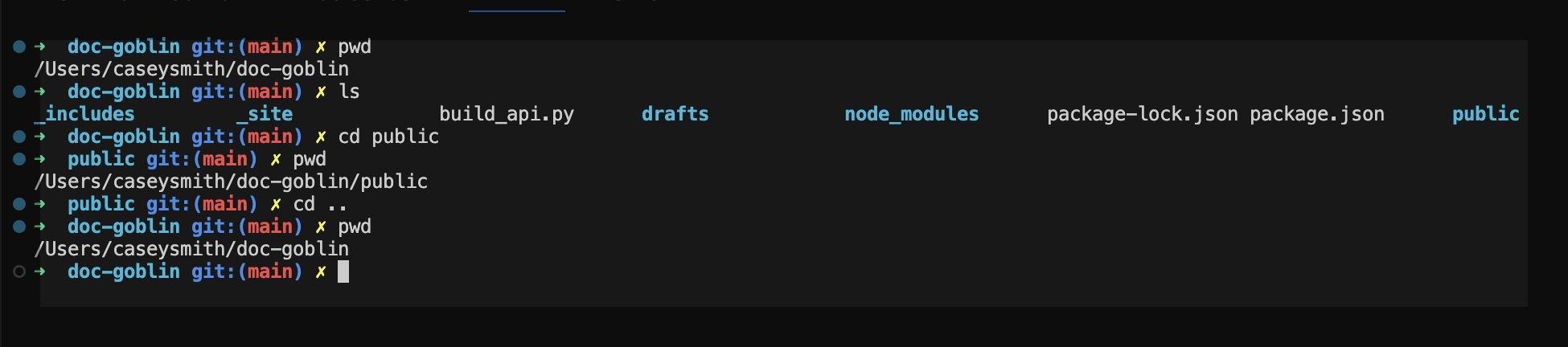
I really encourage you to try the navigation commands and search a little with grep. I promise that you're not going to hurt anything.
the end
If you're afraid of the command line, and this post has helped at all, let me know. I love it when other tech writers try a new thing cause I was loudly and unabashedly enthusiastic about it. You're smart enough!
After you get comfortable with using the command line, you can start scripting the boring parts of your job, and eventually you might build yourself a nice little CLI bundle with all your timesaving scripts. I'll talk a little bit about my approach to scripting in my next post.